
Step-by-step guide: Customizing the sign-on page after an Oracle IAM upgrade
S
Configuration Guide
After an IAM upgrade in Oracle Cloud, your sign-on page branding (logo, identity provider) may need to be reconfigured. Follow these steps to restore or update your custom sign-on experience.
1
Log in to Oracle Cloud Console.
2
Navigate to Applications and choose your environment.
3
From the action menu, select Manage IdP.
 Oracle Cloud Console — Applications → Manage IdP
4
Under Federation, choose your identity provider.
 Federation section — select your identity provider
5
Click the three-dot menu → View Details, then click Edit IdP on the next page.
 Three-dot menu → View Details → Edit IdP
6
In edit mode, select your custom logo under the Icon field.
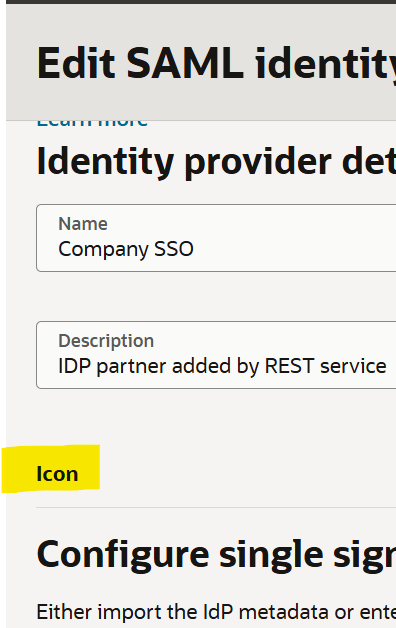 Edit IdP — choose your logo under Icon. And put a custom name that you want to display in the SSO button (replace text Company SSO).
7
Save the details and test your updated sign-on page.
After saving, open your Oracle sign-on URL in an incognito window to verify the custom logo and identity provider appear as expected before rolling out to users.
Oracle Fusion
IAM Upgrade
Sign-On Page
Identity Provider
Configuration